How it works
From team invitations to payroll and customer invoices.
See how Eventmatch connects your team, worked hours, staff pay, and customer billing.
Book a demo01 · Build your team
Bring your team together.
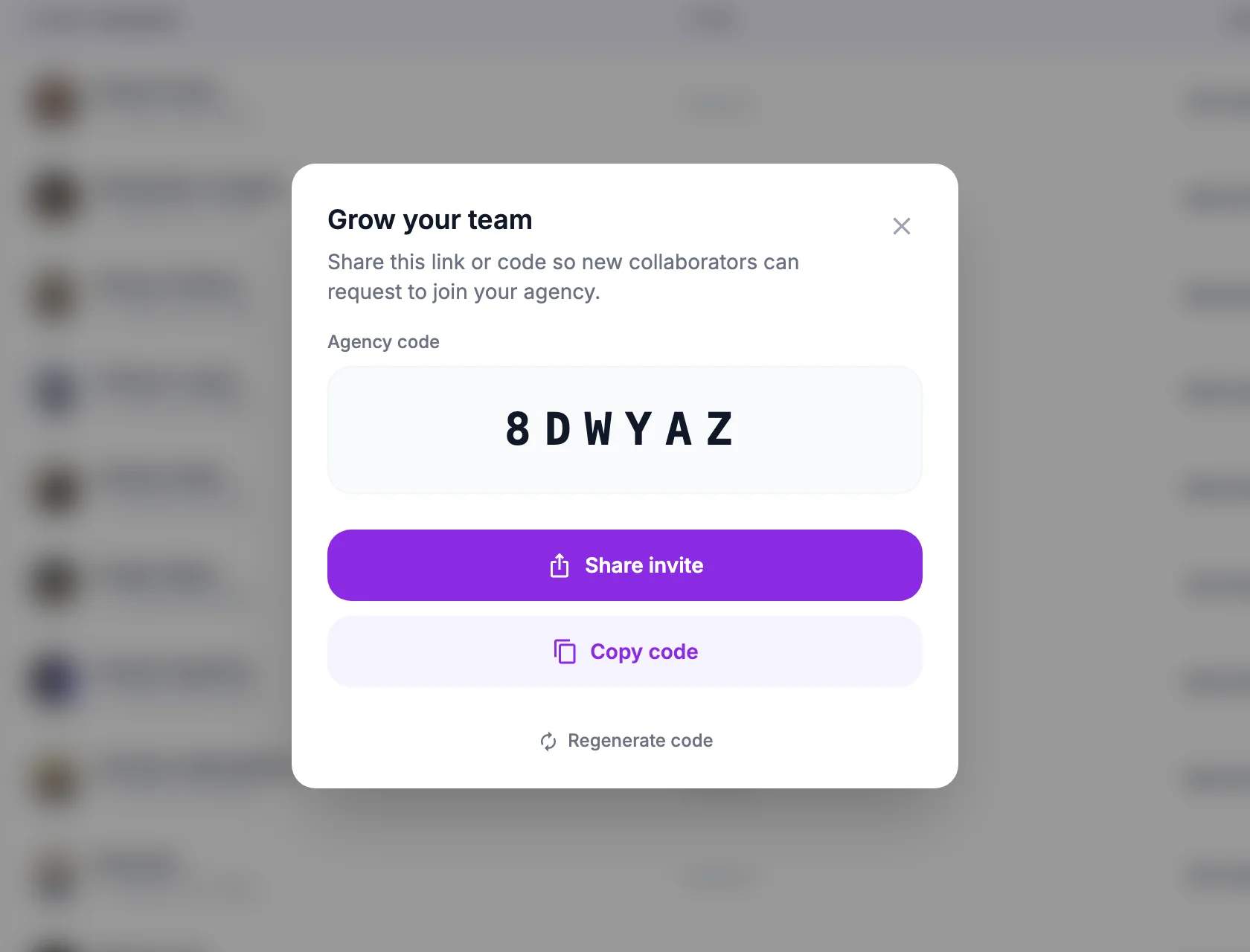
Start with the people you already work with.
- You invite them. They accept the invitation and they are on your team — nothing to approve at your end.
- They ask to join. A code or join link sends you a request, and you approve or decline it.
You can also keep records for people who never use the app — their hours run through payroll like anyone else's.
02 · Plan shifts and fill positions
Set the details. Build the team.
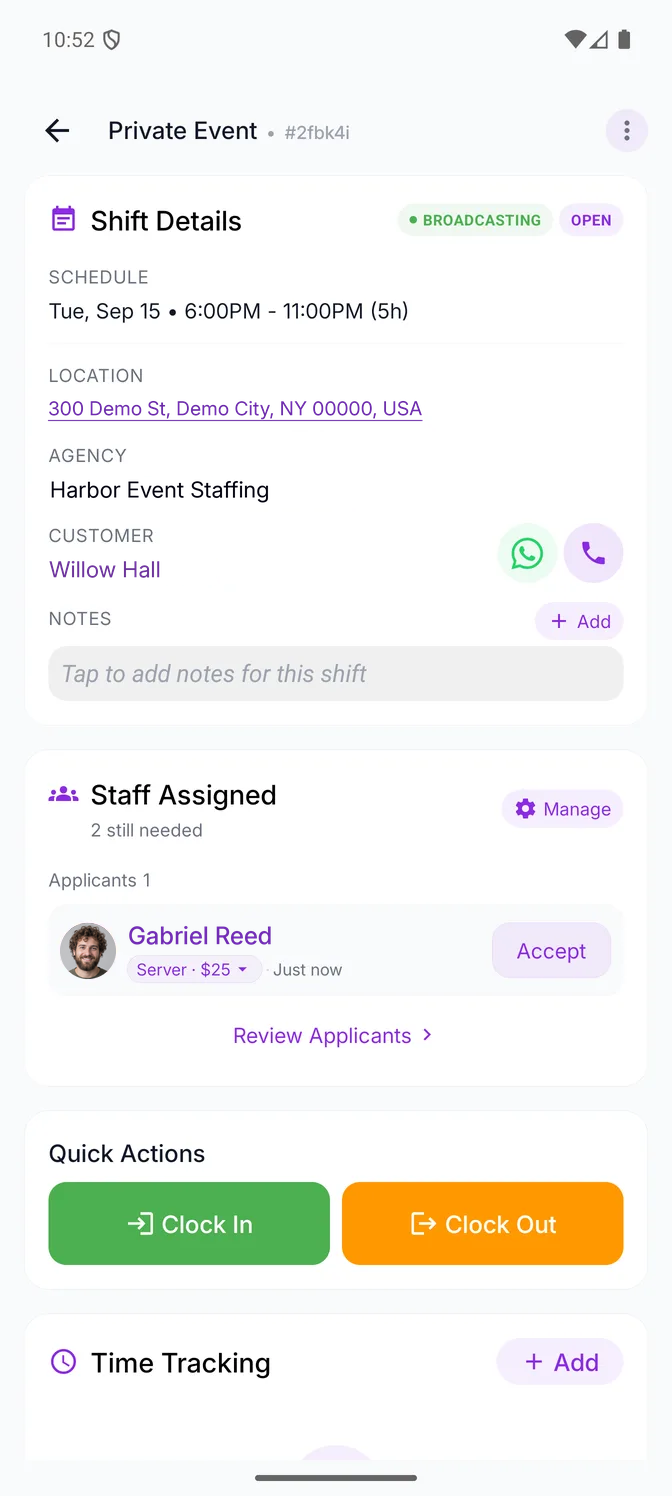
Add the schedule, location, customer and the positions you need — then fill them whichever way suits the job.
- Assign team members. Each person gets the shift on their phone and accepts or declines from there.
- Publish an open shift. Your team is notified and applies from the app; you review the applications and confirm the people you want. One shift can use both paths.
An open shift — a broadcast, in the app — goes to your own team, not to a public pool. If an assignment would double-book someone, Eventmatch says so and lets you decide anyway.
03 · Record attendance and review hours
Know what was actually worked.
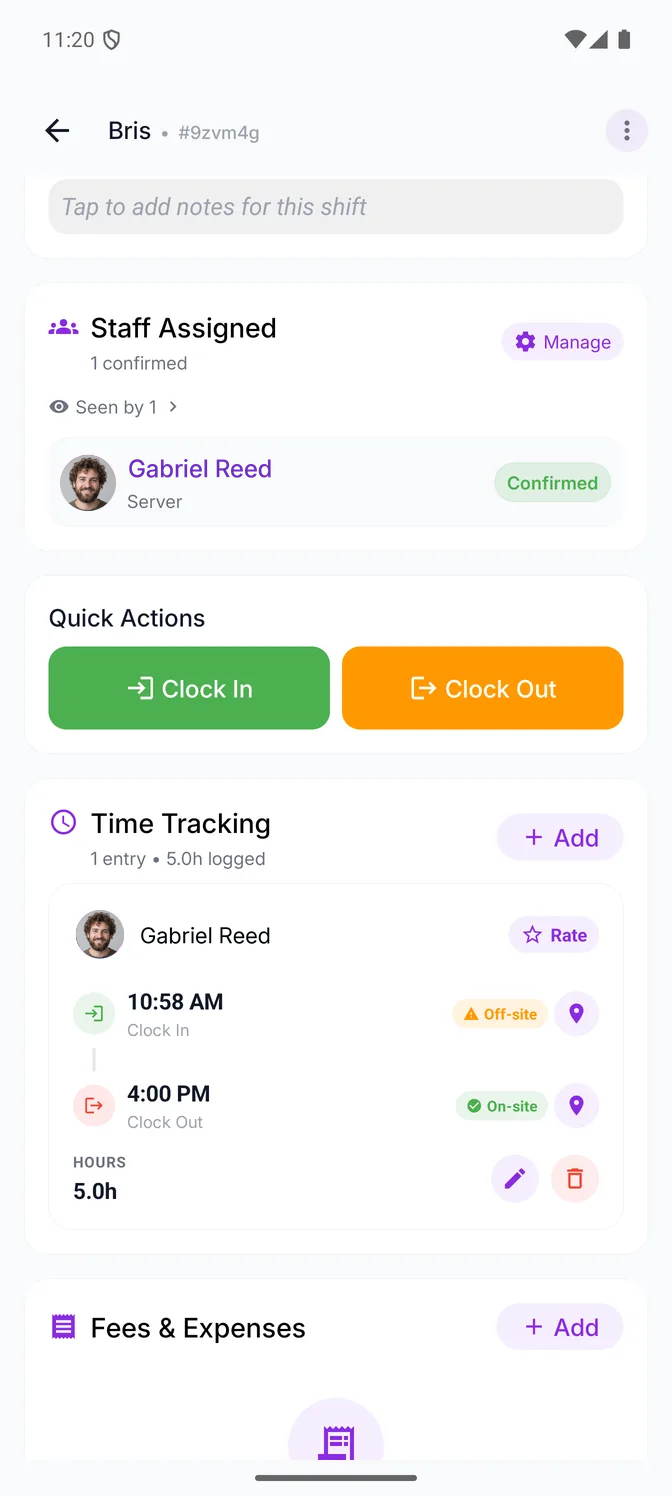
Record clock-in and clock-out times with GPS locations. When a shift has a pinned location, off-site attendance is flagged for review rather than blocked because of location.
- Timesheets. Review and correct timesheets, add missing entries, and export reports.
- Configurable rules. Set a minimum billable hours rule and configure late-arrival penalties, with the option to review or waive a penalty.
Existing invoices and payroll runs keep their recorded amounts when a timesheet changes. How to correct each one.
Which of these your account includes depends on your plan. Compare plans.
04 · Prepare payroll and keep staff records
Turn reviewed hours into what you owe.
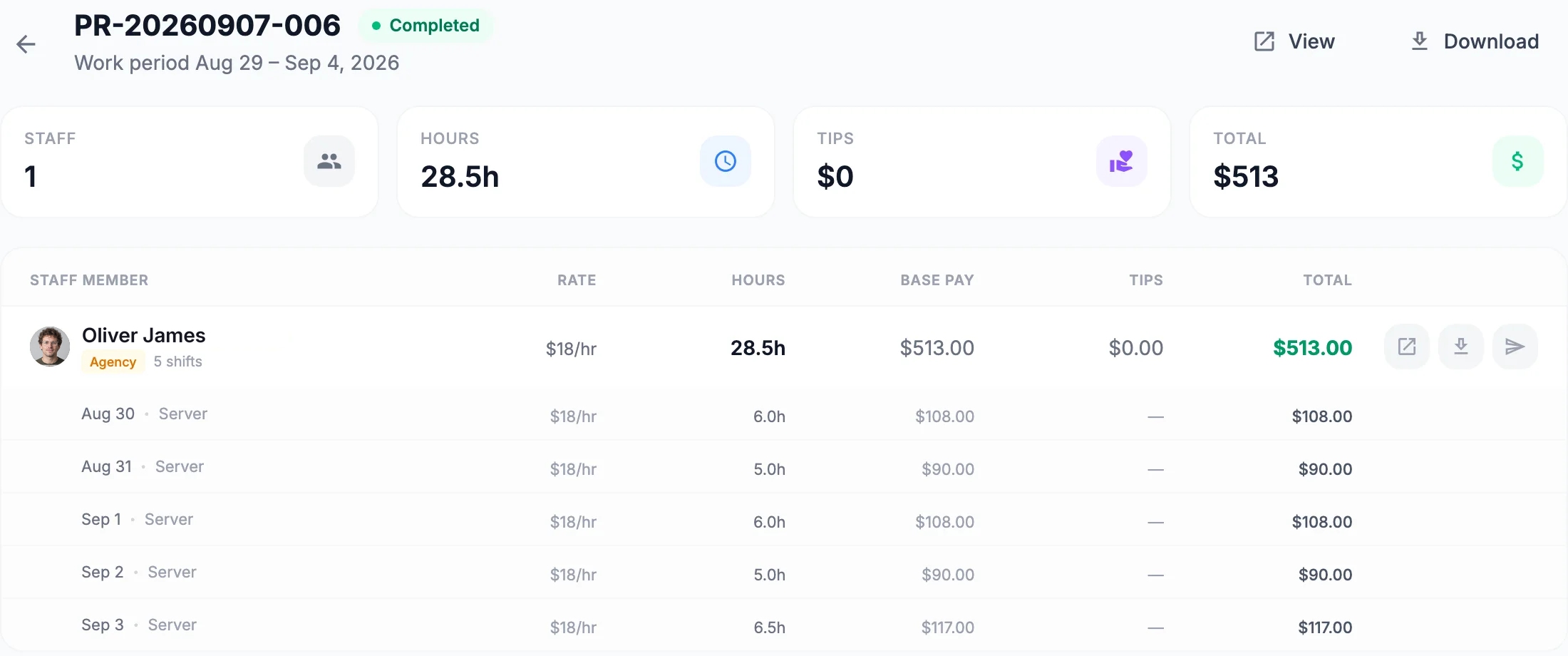
Pick a pay period, review the unpaid work by team member, and create a payroll run — one record holding the shifts, rate, tips and any deductions behind each person's total.
- The run marks those hours paid and stands as the record of what you settled and when. Open a team member's history for any period to see what is still pending.
- Every run has a summary PDF, and every person in it a pay stub you can open, download or email — the same stub they open themselves in the app.
Eventmatch works out what you owe and keeps the record. It does not transfer wages or file payroll taxes.
05 · Invoice customers and track balances
Bill your customers from the same hours.
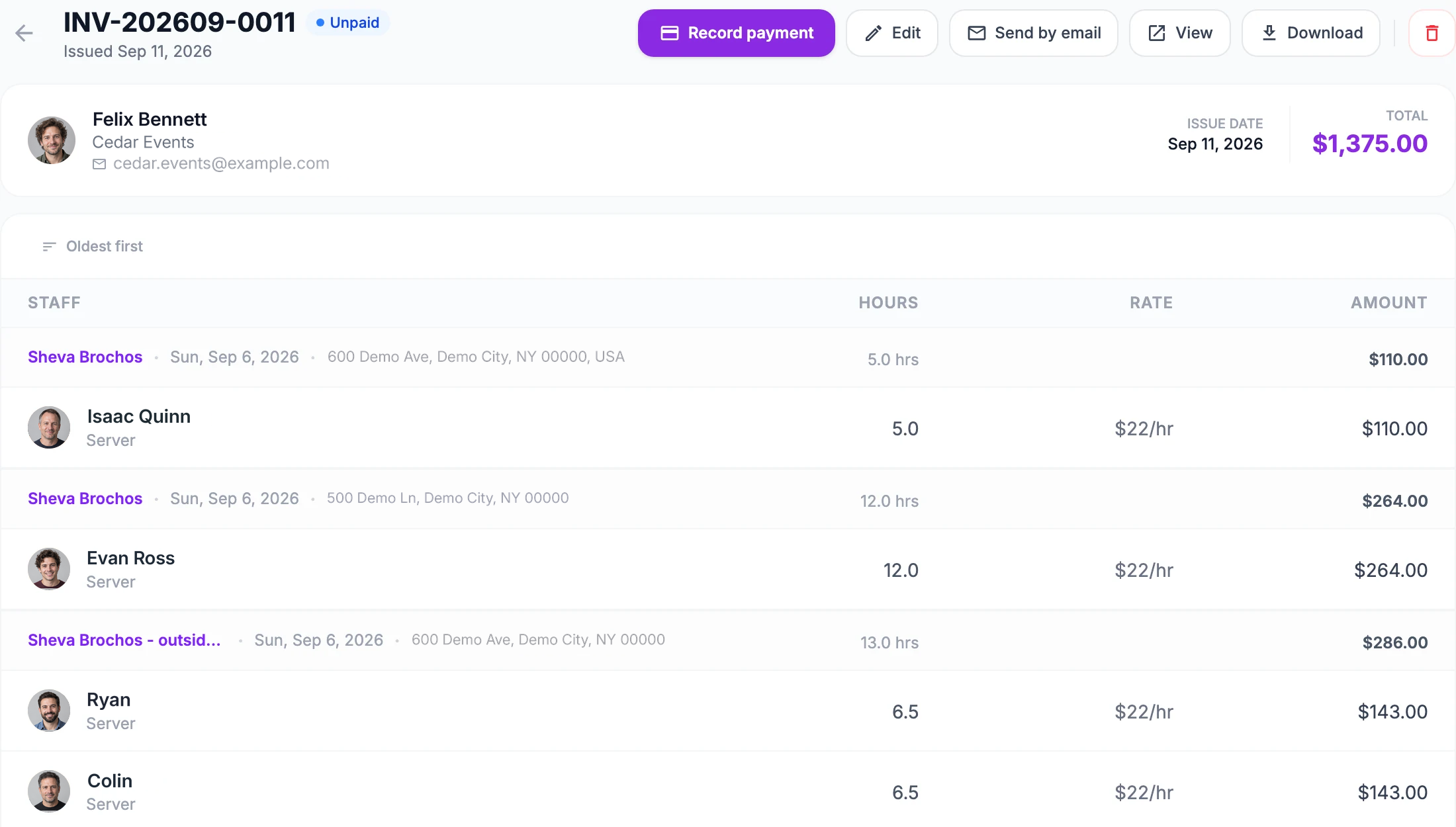
Create numbered invoices from completed shifts — one or several on the same invoice — send them to your customers, and track what is still outstanding. Eventmatch builds each one from the timesheets: a line per person, with the hours, the rate you agreed and the amount.
- View or download the PDF, or email the invoice to your customer with the PDF attached.
- Record each payment as it arrives and the balance follows — and the hours and rates stay correctable afterwards, even after a deposit.
These are the invoices you send your customers. Eventmatch records what you were paid — it never processes, holds or moves the money. Your own Eventmatch subscription is billed separately. See pricing.
06 · Understand the business
See the period, not just the shift.
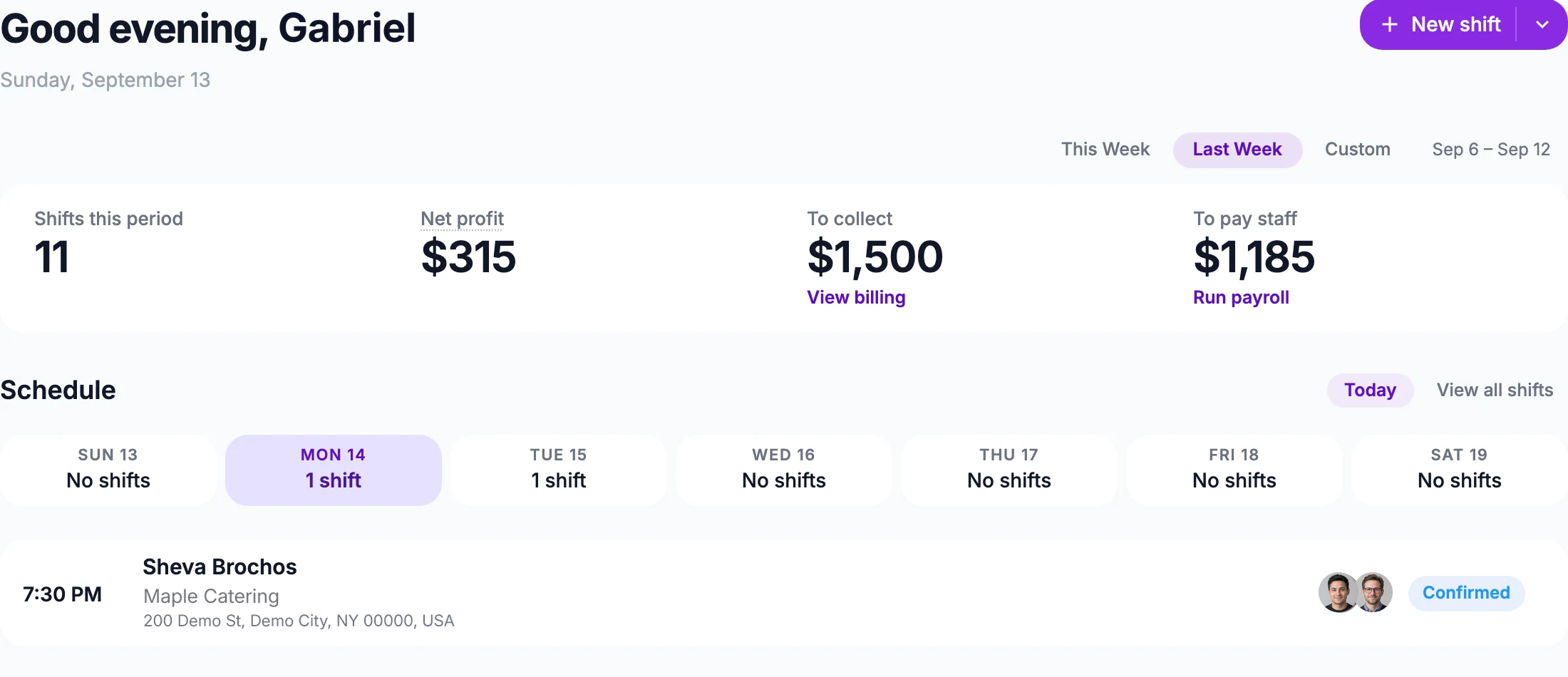
Choose a period. Eventmatch shows the shifts it held, what your customers still owe you, what your team is still owed, and your profit for it.
- Profit means billed amounts less staff cost — not an accounting result: no overheads, expenses or taxes are subtracted.
- Break it down by customer — their shifts, hours, what you billed and what is still outstanding.
Which figures you see depends on your plan. Compare plans.