For team members

Your shifts, clearly organized.

See every shift you're on, clock in and out, and keep your hours and pay records in one place — all from the Eventmatch app.

Download on the App StoreGet it on Google Play
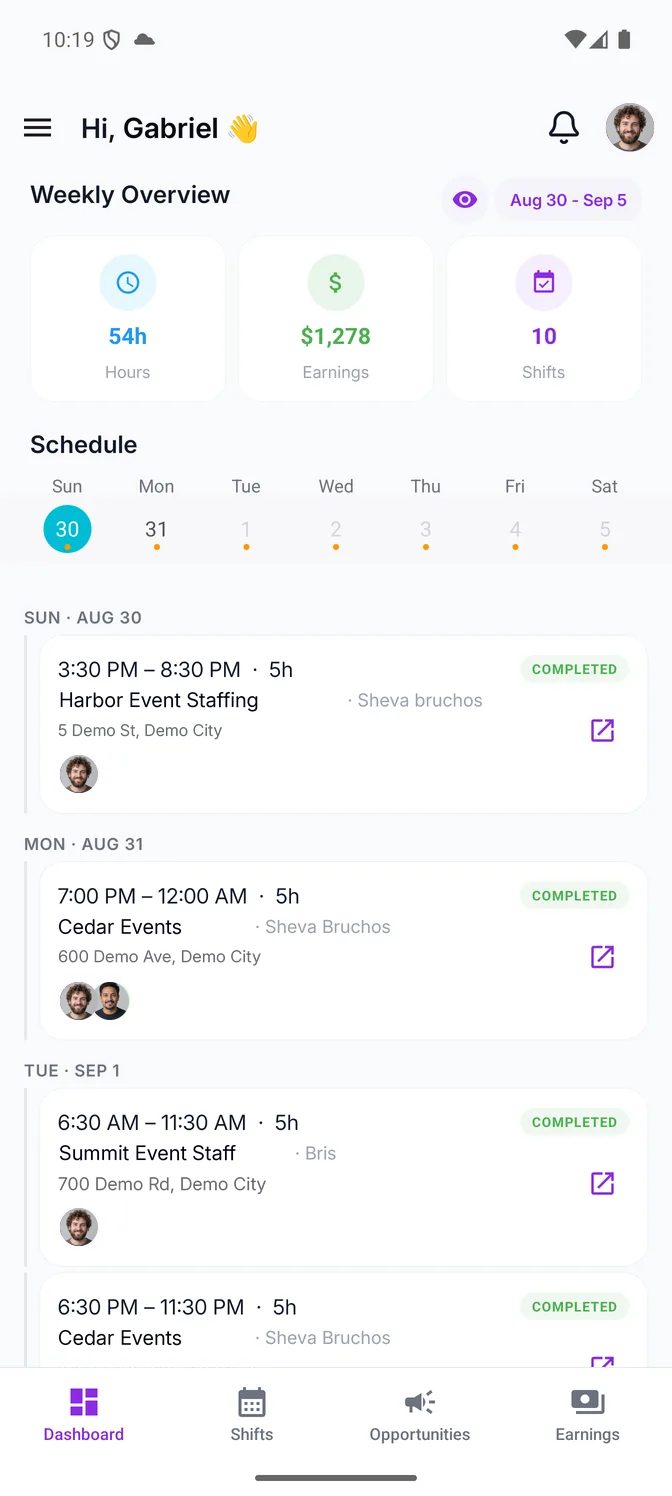
The Eventmatch staff app's home screen: a weekly overview for the chosen week — 54 hours, $1,278 earned across 10 shifts — then the week strip and the schedule itself, each shift with its time, hours, the business, the customer, the address and who else was on it.

Real screens from a live Eventmatch workspace

Get ready for your first shift.

  1. 01

    Get the app

    Download Eventmatch for iPhone or Android and create your account.

  2. 02

    Connect with your team

    Accept your business's email invitation. Or request to join using its code or link and wait for approval.

  3. 03

    Check your shifts

    Review your assignments and the details you need before arriving.

Your shifts

Know where to be — and say yes.

See your shift details — the time, the place, the customer and the notes your team added — and accept or decline assignments from the app.

Apply to your team's open shifts.

When your business publishes an open shift, apply through Opportunities. They review the applications and confirm the team, and you're told either way.
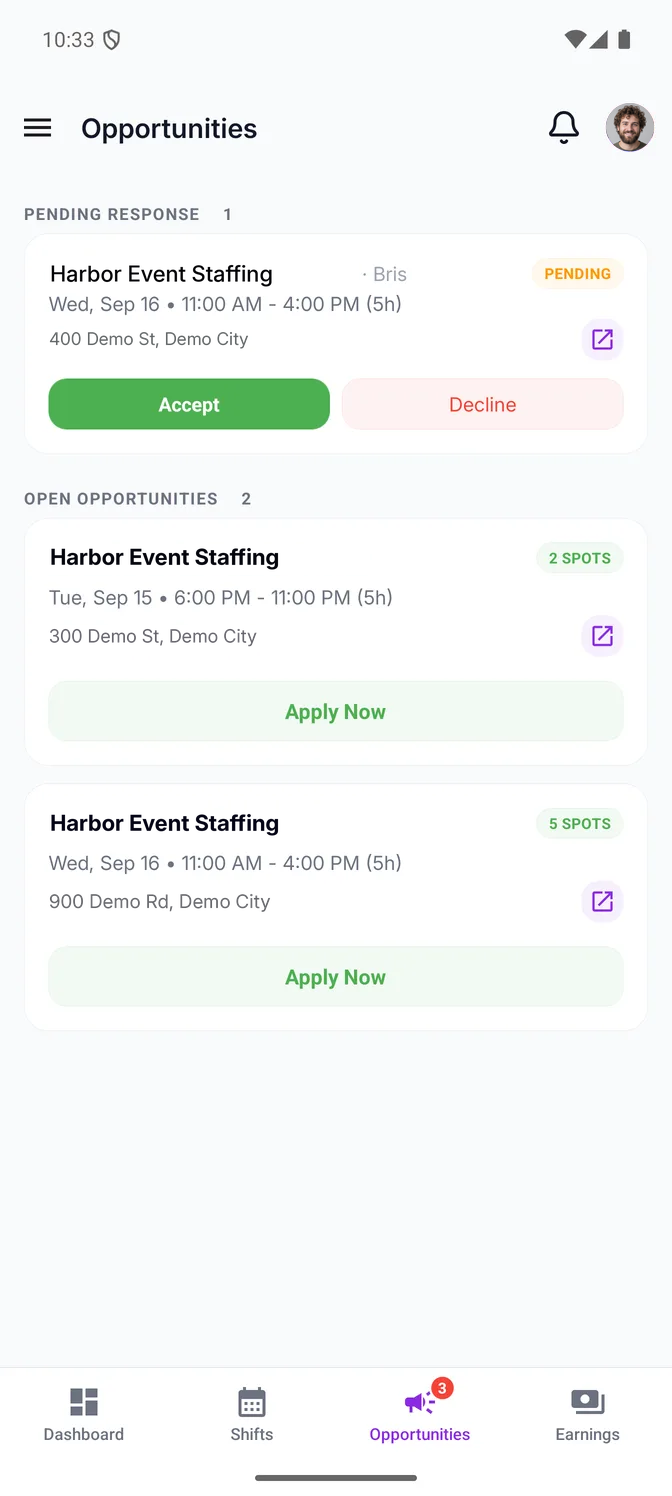
The Opportunities screen in the Eventmatch staff app, in two sections. Pending Response: one shift the business assigned to this worker — Wednesday 11:00 AM to 4:00 PM, with its customer and address, a Pending badge and Accept and Decline buttons. Open Opportunities: two shifts the business published to its team, one with 2 spots and one with 5, each with its date, time, address and an Apply Now button.

Record attendance

Clock in. Clock out.

Clock in when you arrive and out when you finish. Both times are recorded with your location, so the hours on the shift are your own — and your business reviews them in its timesheets.

Clocking in opens shortly before the shift starts. Off-site clock-ins are flagged for your manager to review.
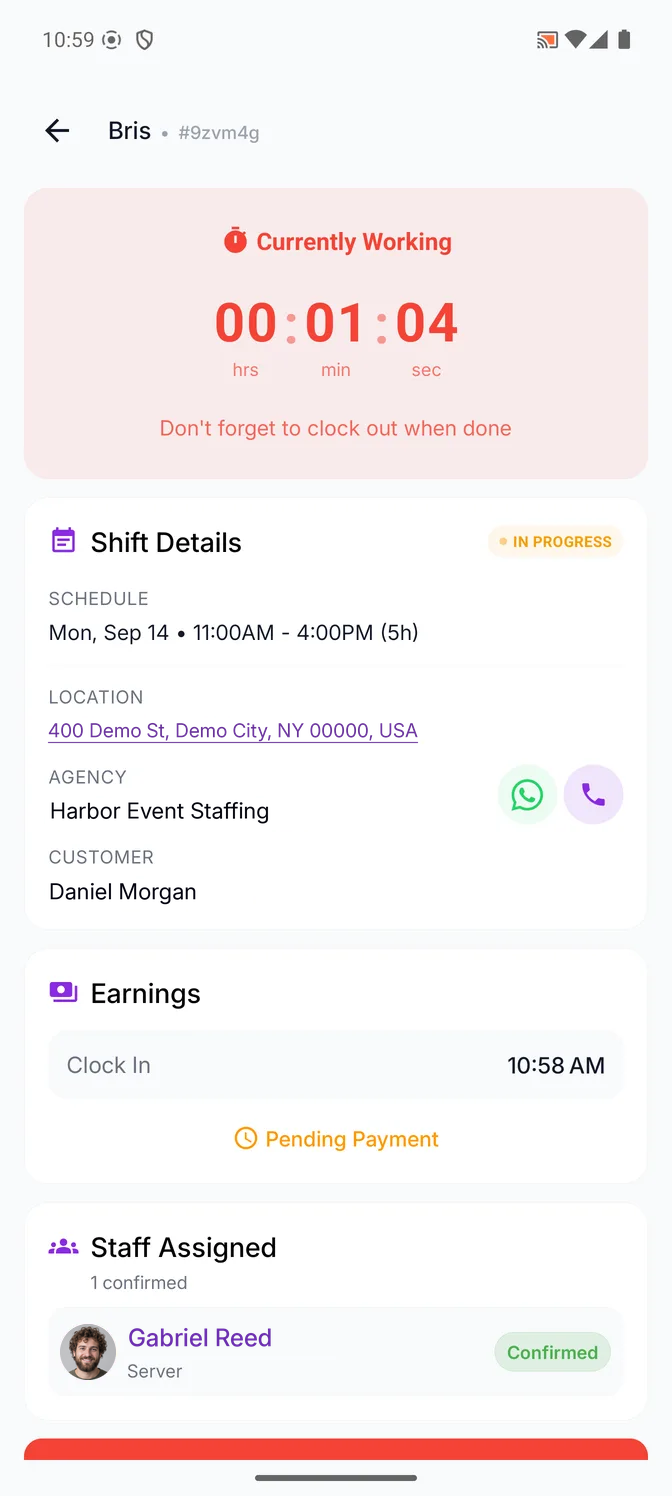
A shift in progress in the Eventmatch staff app: a Currently Working banner with a running timer and a reminder to clock out when done, then the shift details marked In Progress — Monday 11:00 AM to 4:00 PM, the address, the business with buttons to message or call it, and the customer — an earnings card showing the clock-in recorded at 10:58 AM with the pay still pending, and the confirmed team on the shift.

Your record

Your work history and pay records.

Every shift you finish stays with you: Earnings gathers your hours, your rate and what you earned for any period, across every business you work for.

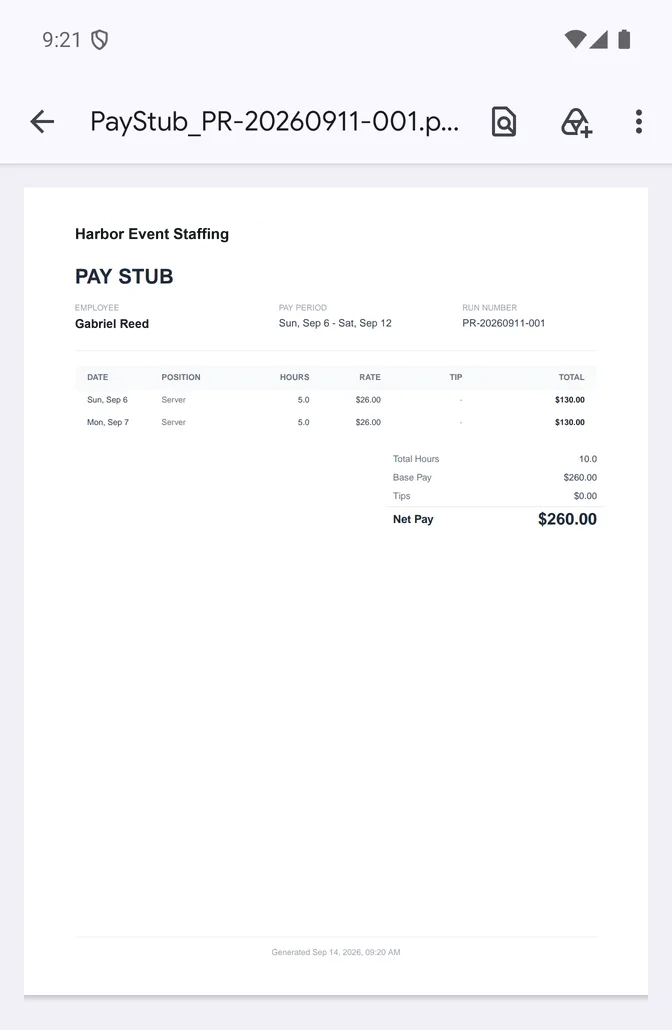
When a business runs payroll that includes your shifts, its pay stub appears under Pay Stubs — tap one to open the PDF on your phone, then save or share it.
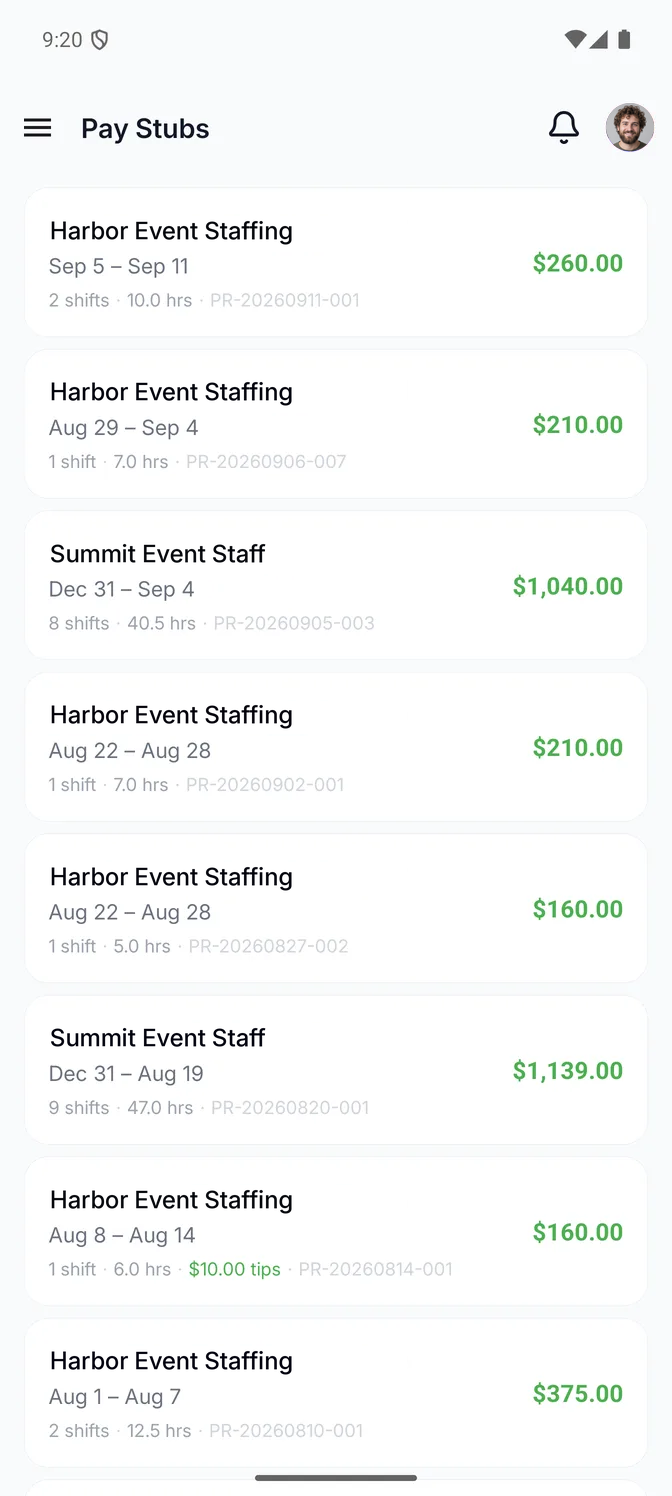
The Pay Stubs list in the Eventmatch staff app: one card per payroll run a business processed for this worker, each with the business name, the pay period it covered, the number of shifts and hours in it, its run number and the amount paid.
A pay stub opened from the staff app in the phone’s document viewer: the business name above a PAY STUB heading, the employee, the pay period and the run number, then a line per shift with its date, position, hours, rate and total, and the totals — total hours, base pay, tips and net pay.

Common questions

Accept the invitation sent to your email, or request to join using your team's code or link — a request made that way needs the business's approval. If neither works, Support has the details.

Be ready for your next shift.

Get the Eventmatch app.